
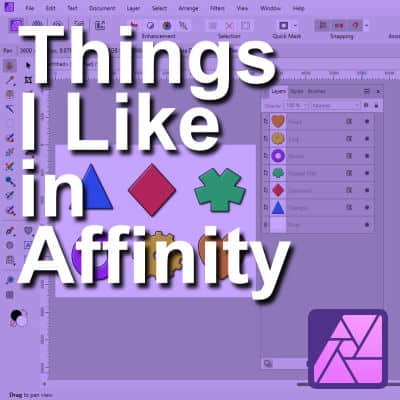
When I started exploring Affinity, once I got past the first steps of figuring out where everything was, I quickly discovered that some tasks were actually easier to do in that program. I found several features that made me stop and think, “Oh, that’s clever!” Here are a few of the things that immediately stood out to me and made me appreciate Affinity in its own right.
1. You can apply effects to multiple layers at once
One of my favorite surprises was realizing that I can apply a single command, like a drop shadow or resize, to several layers simultaneously. You can also hide or unhide those selected layers in one click. This saves time and keeps everything consistent, especially when working with multi-layer projects.
In PaintShop Pro, even though you can select multiple layers at once in recent versions, you still can’t apply the same drop shadow, rotation, or resize to all of them simultaneously.
2. Clipping images or papers is fast and simple
In PaintShop Pro, you have to create a separate mask to clip a photo or paper into a shape. While using masks in PaintShop Pro is simple, creating one every time you want to fit a photo or paper into a shape feels a bit cumbersome.
In Affinity, it’s a single step: just drag the image or the paper over the shape, and it’s instantly “clipped.” This one-click workflow feels very natural once you try it. This is particularly useful when working on templates if you want to replicate uneven or unusual shapes. So if you often work with layered templates, this will be a great timesaver.
3. Most effects are non-destructive
Affinity’s biggest strength might be its non-destructive editing. You can apply effects and go back to tweak them later, without starting over or undoing half your work. A lot of tutorials will show how to use Adjustment layers to modify basic settings like brightness, color, etc. Effects like drop shadows, bevels, outlines, and color overlays are also applied non-destructively. This encourages more experimentation since nothing feels permanent.
Although this is fantastic for editing flexibility, it also comes with some limitations: some effects you might be familiar with in PSP don’t exist in Affinity precisely because they are “destructive.”
4. More vector shapes by default
In PaintShop Pro, the basic vector shapes are the rectangle, the ellipse, and the symmetric shapes. You also have a few preset shapes by default, and you can add more if you want. On the other hand, Affinity comes with a wider selection of vector shapes, way beyond those basic rectangles and ellipses. You get the triangle, the diamond, the star, the polygon, the crescent, the donut, the pie shape, the callout, the gear, and many more. In addition, the basic rectangle shape includes options for individual corners, which can be square or rounded independently. This is fantastic to create tags, frames, and fun shapes in your projects.
5. Extra options for vector editing
I also like that Affinity lets you combine or merge vector shapes directly. This is particularly convenient when you want to create a complex design made of several parts. You can draw them separately and then merge them into a single shape.
In PSP, individual components need to stay separate, which limits what you can do. Affinity lets you unite, subtract, intersect, or divide shapes to create custom designs with ease.
6. Curving a path feels intuitive
If you need to bend a path, Affinity makes it feel almost natural: you can just click on the path and pull it to curve it, without manually adding or adjusting nodes. It’s a small difference but one that makes a big impact when fine-tuning text paths or vector outlines. When combining this with the additional options to combine shapes, it makes working with vectors quite a bit simpler and faster.
7. You can save Layer Styles
Although PaintShop Pro allows you to save presets for various effects (like shadows, bevels, etc.), they are always "separate". On the other hand, in Affinity, you can have those settings grouped together to achieve a particular effect and save them together as a Layer style. This will allow you to apply the same set of effects over and over again, with one click. Even better, you can still tweak the settings if needed since they’re applied non-destructively. If you’d like to explore how Layer Styles work more in-depth, check out my article on Layer Styles in Affinity.
Even though PSP also has Layer Styles, they are far less convenient and user-friendly. In fact, they are just INCONVENIENT to use in most cases.
8. A few extra blend modes to play with
PaintShop Pro includes 22 Blend modes, but Affinity offers 32. This gives you even more creative possibilities for color blending and texture work. They’re fun to experiment with when you want something a bit different. Just like in PaintShop Pro, the effect is applied dynamically, so you can preview the result simply by hovering over each mode.
It always takes a bit of adjustment when learning a new program, but discovering features that make me think, “I wish PSP had that!” makes the learning curve worthwhile. These tools might not replace my familiar PaintShop Pro routines yet, but they’ve already earned a place in my Affinity toolbox.


1 thought on “Things I Really Like in Affinity Photo”
I agree with you in every aspect you mention about Affinity and I’m sure there is so much more to discover! Of course I will be using PSP too with all its picture tubes and all the great scripts that I have. But I see it as a new exiting challenge to learn a new program together with you and the scrapbook campus.