

When you work on a project in Affinity Photo (or Designer/Publisher), saving your work properly is crucial. A program crash, power failure, or unexpected error can cause you to lose progress. Plus, if you want to share your design, post it online, or open it in another program, you’ll need the right format.
Let’s go through the main ways you can (and should) save or export your work in Affinity.
Saving in .afphoto format (Native Affinity Format)
For your work in progress, saving in .afphoto, the native format for Affinity is the best as it will retain all the layers and effects. You can then reopen your project later and continue working.
Going through the File > Save as..., the only option will be to save in .afphoto format (it will be a different extension if you are using other apps from the Affinity suite).

This is the safest choice if you plan to keep working on your file later.
Saving in .jpg (Flattened Image)
Since you cannot share projects with most of your relatives or colleagues, you need to save your work in a .jpg format. However, as you saw above, Affinity only "saves" in its native format. If you need any format other than .afphoto, you will need to go through File > Export... This is the dialogue window you will get and you can choose JPEG in the drop down list of available formats.
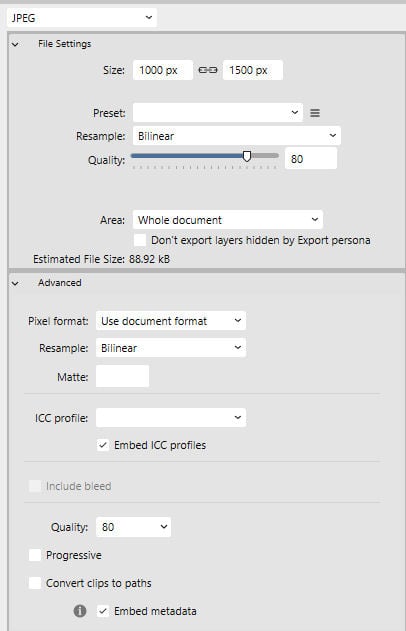
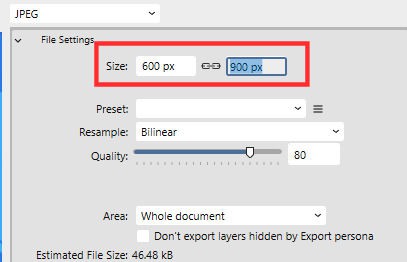
Although you could resize your file before extracting it, Affinity allows you to choose the dimensions at this point. For example, if you need to resize your project to post in the forum, you can enter the 600 pixels on the first field (horizontal), and then click on the second one where you will see the vertical value automatically adjust. That is because the link icon between both fields indicate that the adjustment will be automatic.
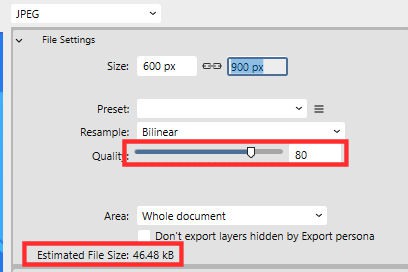
Another detail to consider is the resulting filesize. Depending on where you want to post your project, there might be a filesize limitation. If your file ends up too large, you can reduce the Quality value and the filesize will go down. If you are posting your project in a forum, in a gallery, or on Facebook, you don't need a high quality image so don't worry about bringing down the Quality slider a bit more.
Remember that the .jpg format will flatten everything visible into a single layer.
Saving in .png format (With Transparency)
If your work includes some transparent sections, you will need to use the .png format. Note that, just like the .jpg format, everything will be flattened into a single layer. However, it will keep the transparent area as they are. Once you choose the PNG format in the top dropdown list, you will see these options:
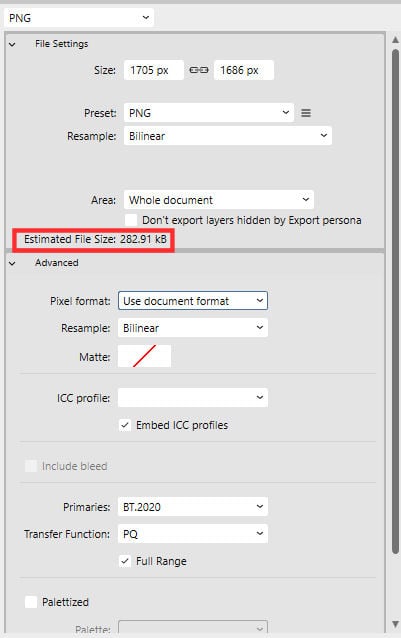
Notice that you also get the Estimated File Size, however, unlike for the .jpg format, you have to control over that size, so you can only use it as a guide to inform you.
Use the default values on that dialogue window and you should be ok with exporting your PNG files.
Saving in .psd format (Layers for Photoshop/Other Programs)
If you need to save your file with the layers to transfer to a different program, .psd might be a good format for you. Not every layer type or effect will be retained, but most of them will.
When you choose the PSD option in the dropdown list, you will get this dialogue window:
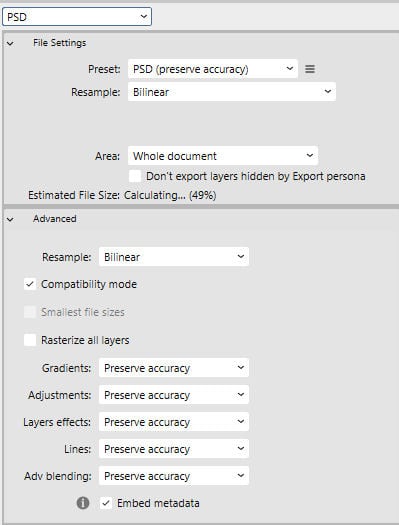
Although you can try tweaking the various settings, using the default ones would likely yield a satisfactory result.
Saving in .wmf format (For Vector Transfers)
You are unlikely to save a scrapbook project in a .wmf format. This is an old format, but it is very useful if you want to preserve the vector properties when you switch to a different program. It looks like Photoshop or Photoshop Element cannot handle the .wmf file, but PaintShop Pro can.
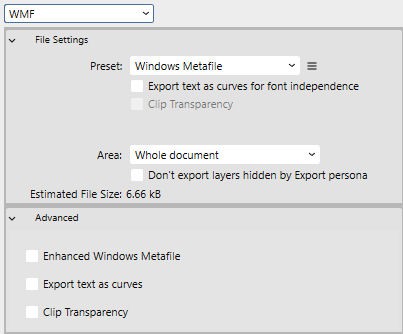
⚠️ Note: If you open a WMF in PaintShop Pro, it may appear blank at first. I explain the fix in this blog post about transfering shapes from Affinity to PaintShop Pro.
Saving in other formats
Affinity Photo offers several other formats that you can use to export your files.
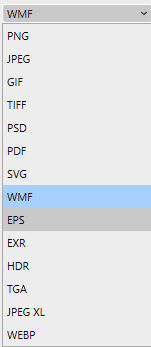
For most scrapbookers, photographers, and designers, .afphoto, .jpg, .png, and .psd will cover nearly all needs.





1 thought on “Saving files in Affinity”
Great article. Thx!